
Learn how to access and utilize Workday as an external user. Examples of external users include third parties, extended enterprise learning users and other university partners. For external candidates applying for staff and faculty positions, please use the ISU Career Portal.
Workday for External Users
Introduction
Some Workday users at Iowa State University, mostly third party users, access Workday directly through the login page. Learn how to access Workday as an external user, including multi-factor authentication.
Log In to Workday
Follow the steps below to access Workday as an external user at Iowa State University.
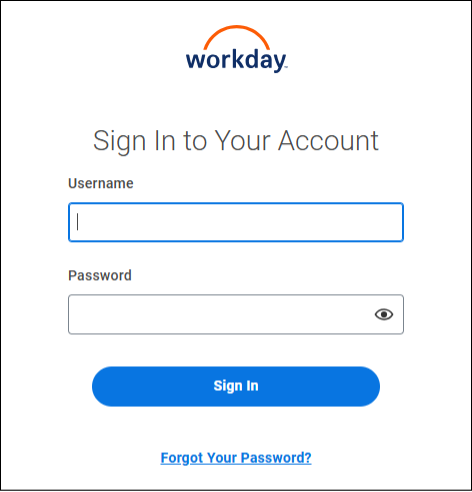
- Navigate to the Workday login page.
- Enter your Username and Password. Note: If this is your first time signing in, your username and password should have been sent to you in separate emails.
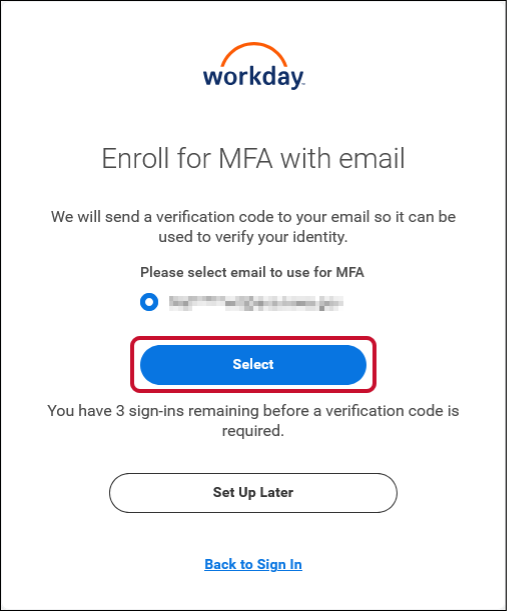
- Confirm your email address and click Select.
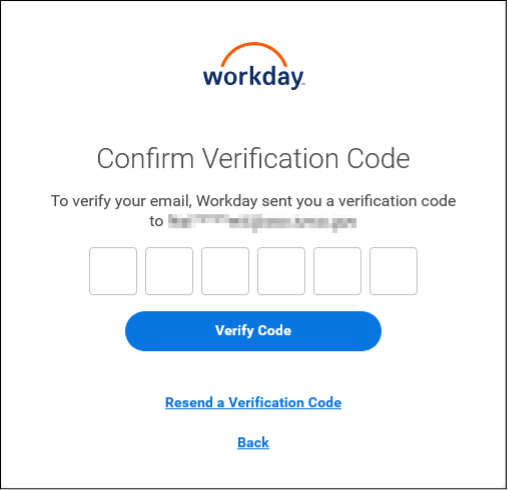
- A confirmation page will prompt you to check your email for a passcode.
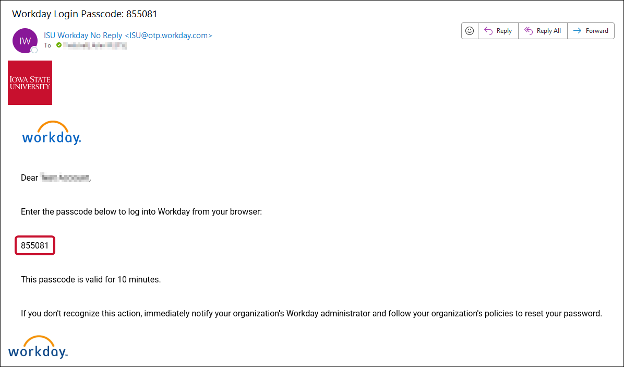
- Navigate to the email from Workday in your email inbox. Copy the passcode.
- Back on the Workday login page, paste or manually enter your passcode and select Verify Code.
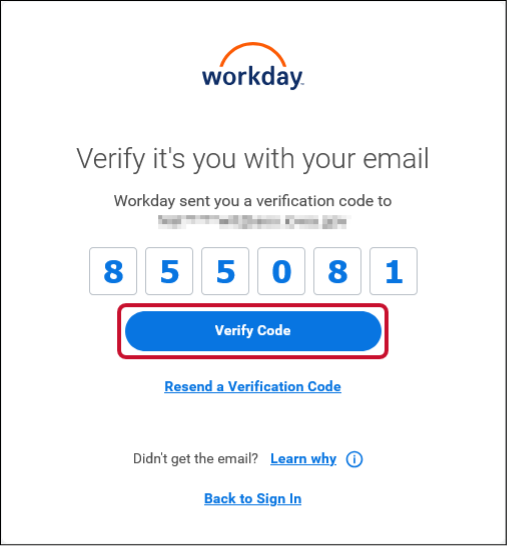
- You have now successfully logged into Workday.
Get Help
If you have questions about this process:
- Extended Enterprise Learning users, please contact your Extended Enterprise Administrator (the person who provided you the registration link) for assistance.
- All others, please contact the ISU Solution Center at 515-294-4000 and explain that you are an external Workday user.
Introduction
Learn how to make a payment on a student's behalf in Workday. Note: You must be given third party access by the student in order to make a payment on their account.
Make a Payment
Follow the steps below to make a payment on a student's behalf in Workday. Note: This process is initiated in Workday but is completed in Nelnet.
- Log in to the Workday login page.
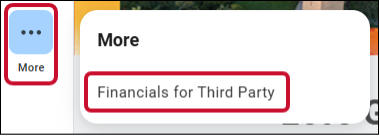
- Hover over More in the left sidebar and select Financials for Third Party.
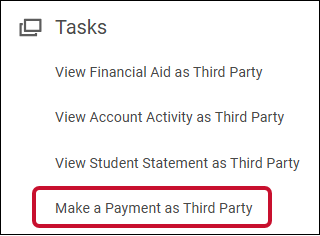
- Select Make a Payment as Third Party from the Tasks section.
- A pop-up window will appear. The student's name populates. Note: If you have more than one student, select the specific student's name in the Student field. Select Iowa State University in the Institution field and select OK.

- Review the Total Account Balance and Due Now details and select OK.

- You will be redirected to Nelnet. Follow the prompts in Nelnet to officially submit the payment on the student's behalf.
Get Help
Please contact Accounts Receivable at 515-294-7388 or ubill@iastate.edu with questions about this process.
Introduction
Learn how to view student academic and financial information in Workday. Note: You must be given third party access by the student in order to view their student information.
View Student Academic Information
Follow the steps below to view academic student information in Workday. Note: The student controls which information you can access. If you do not see information referenced in these instructions, your student has not given you access to it.
- Log in to the Workday login page.
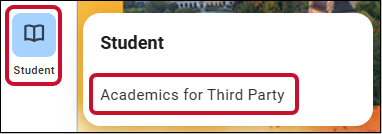
- Hover over Student in the left sidebar and select Academics for Third Party to view academic links such as current classes, transcripts, grades, etc.
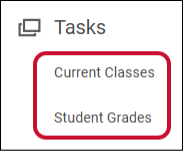
- Select Current Classes or Student Grades to view academic information.
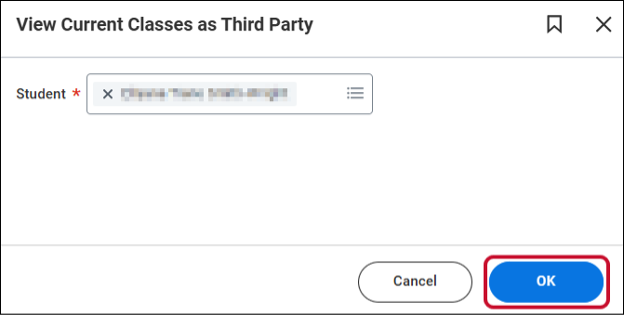
- A pop-up window will appear. The student's name populates. Note: If you have more than one student, select the specific student's name in the Student field.
- For Current Classes - select OK to see the student's current classes.
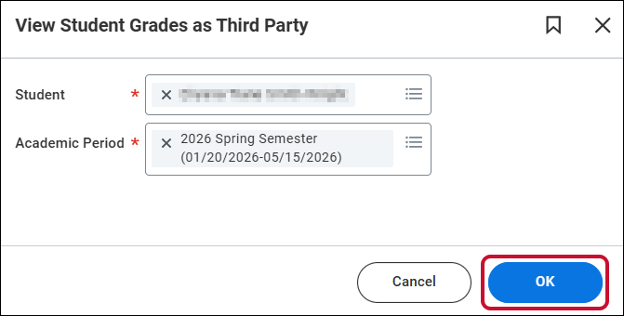
- For Student Grades - select the Academic Period and select OK to see the student's grades for the selected period.
- For Current Classes - select OK to see the student's current classes.
View Student Financial Information
Follow the steps below to view financial student information in Workday. Note: The student controls which information you can access. If you do not see information referenced in these instructions, your student has not given you access to it.
- Log in to the Workday login page.
- Hover over More in the left sidebar and select Financials for Third Party to view financial information.
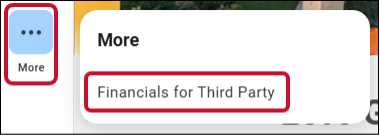
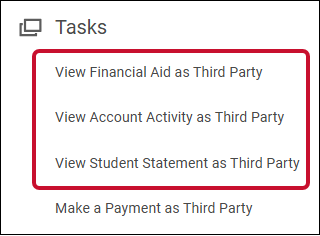
- Select View Financial Aid as Third Party, View Account Activity as Third Party, or View Student Statement as Third Party to view financial information.
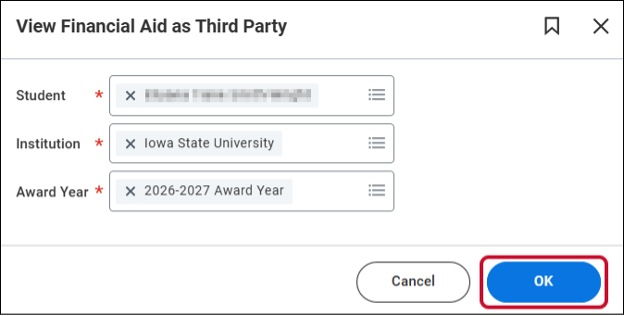
- A pop-up window will appear. The student's name populates. Note: If you have more than one student, select the specific student's name in the Student field.
- For View Financial Aid as Third Party - select the Institution and Award Year and then select OK to see the student's financial aid for the selected award year.
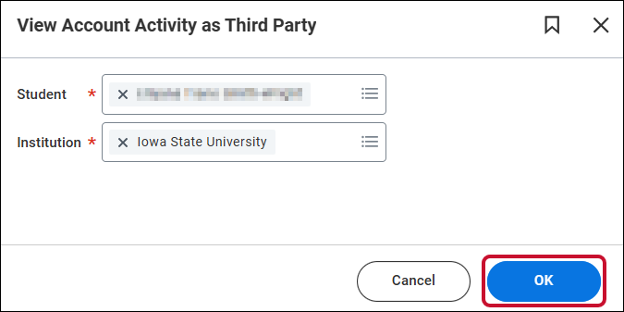
- For View Account Activity as Third Party - select the Institution and select OK to see the student's account activity. Note: The Due Now Details tab will show the amount currently owed for the student's account.
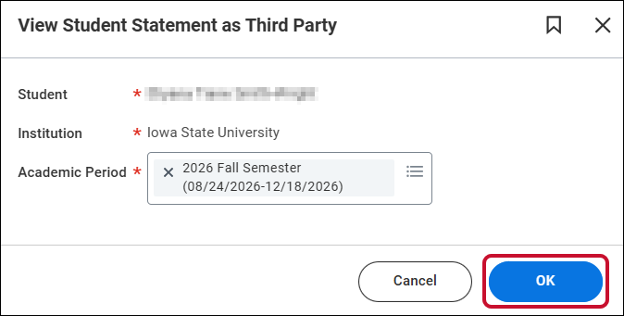
- For View Student Statement as Third Party - select the Academic Period and select OK to see the student's statement. This option provides more details regarding your student's financial account organized by academic period.
- For View Financial Aid as Third Party - select the Institution and Award Year and then select OK to see the student's financial aid for the selected award year.